Monday, 25 February 2019

How to Access Files on iCloud


1. How to Access Files on iCloud Drive on the iPhone

With the iCloud Drive App, available in iOS 10, you can see all the files you have saved in the iCloud Drive right on your iPhone. First, you need to

make sure that you have turned on the iCloud drive app on yYour iPhone or iPad. Here’s how to turn on the iCloud Drive on your iPhone or iPad.

Step 1: Open the settings app on your device.

Step 2: Tap on the “Apple ID”>“iCloud”.

Step 3: Turn on “iCloud Drive” to get the iCloud Drive app to appear on the Home screen.


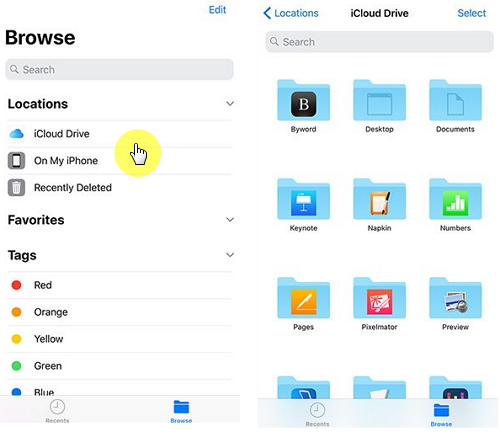
With the launch of iOS 11, came a better way to view files on your iPhone. The Files App is a great way to access all the files you have stored on your iCloud Drive. The following is a step by step guide to help you do that.

Step 1: Launch Files app on your iPhone or iPad.

Step 2: Tap on “Browse” at the bottom.

Step 3: Tap on “iCloud Drive” under the “Location” section and you’ll be able to see all the files you’ve stored in your iCloud Drive.

2. How to Access iCloud Settings on the iPhone

It used to be that you could access the iCloud settings easily by going to the section named “iCloud” in the setting app. But the new iOS version had changed that causing a lot of confusion when users can no longer find iCloud settings in the settings app. It is now actually easier to locate your iCloud settings, here’s how to easily do that.

Sponsor ads:7 Best Twitch Streaming Software (Free and Paid) for You 2019

Also Read:Fix iTunes Error 1671 When Updating iPhone/iPad


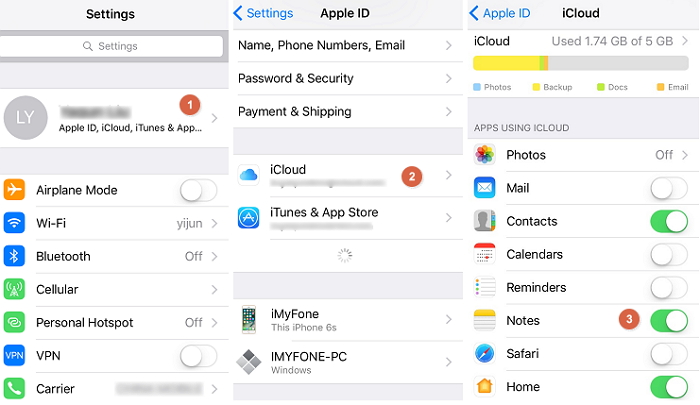
Step 1: Open the “Settings App” on your device.

Step 2: At the very top, of the screen, there is “Your Name.” Underneath that, there is your Apple ID, iCloud, iTunes & App Store.”

Step 3: Tap on your name to access the Apple ID settings and then tap on “iCloud” to find the iCloud settings.

3. How to Access 18 + Types of iCloud Data on Computer

What you can access on your iCloud account via your iPhone is limited to just the files in your iCloud Drive and the iCloud settings. Yet iCloud holds a lot of information in the form of all your backup files and the contents they hold. Also Read:Delete the Downloaded iOS Update on iPhone/iPad (iOS 12)
Sponsor ads:Fix Audio Issues on Windows 10 with 5 Methods that Work in 2019

Wednesday, 20 February 2019

The Most Common Questions about "Reset All Settings" on iPhone 2019


The Most Common Questions about "Reset All Settings"

This article seeks to provide comprehensive answers to this question. It is our hope that you will be able to make a more informed choice once you’ve read this.
01 What is “Reset All Settings”?

Reset All Settings is a feature of your iOS device that allows you to factory reset the device. It is a common solution to many problems because it can get rid of any settings that may be causing the problem in the first place.


02 What Happens When I Choose “Reset All Settings”?

It is a good question and seeing as even Apple suggests resetting all settings as a common solution to some of the problems on your device, it is worth asking. The truth is that choosing to “Reset All Settings” on your device will often reset the iPhone to its factory settings. All the settings you had on the device will be gone. This means all things you’d setup like passwords and connectivity settings will have to be setup again. But the Apps will still be there.


03 What Will I Lose If I “Reset All Settings”?

As the name suggests resetting all settings will reset the settings and preferences that you have set on your device. The action will not affect any data or installed apps on the device but it will affect your passwords like Wi-Fi networks and such. So, while it may be a good idea to have a backup, it may not be necessary since your apps, media and data will remain intact. You lose your settings.


04 Does It Cause Re-activation that Requires a SIM Card to be Inserted?

The simple answer is no. When you reset all settings, your device will not need a SIM to be reactivated.Sponsor ads:How to Turn off Tumblr Safe Mode without AccountMust Read:If you lost data after you updated to a new iPhone, you can always use Gihosoft iPhone Data Recovery to get the data back from the old iPhone or backup.

Gihosoft Free iPhone Data Recovery:iphonerecovery.com

If you use android phones, please choose Gihosoft Android Data Recovery


05 What Can “Reset All Settings” be used for?

Resetting your Settings is a good way to fix most issues affecting your device. If you are unable to download apps for instance or if you are unable to update the device, this setting may help. It is very helpful because it may get rid of a setting preventing you from adequately using the device.


06 Need Further Help?

If you are having a certain issue with your device and resetting all settings doesn’t work, you may want to try iMyFone iOS System Recovery. Unlike, erasing all contents and Settings, this program will fix the issue without affecting your device’s data. It will also not affect our preferred settings. These features make iMyFone iOS System Recovery a great solution.

Monday, 18 February 2019

How to Transfer iTunes Playlist to iPhone Using iTunes

How to Transfer iTunes Playlist to iPhone Using iTunes 2019

How to Transfer iTunes Playlist to iPhone Using iTunes

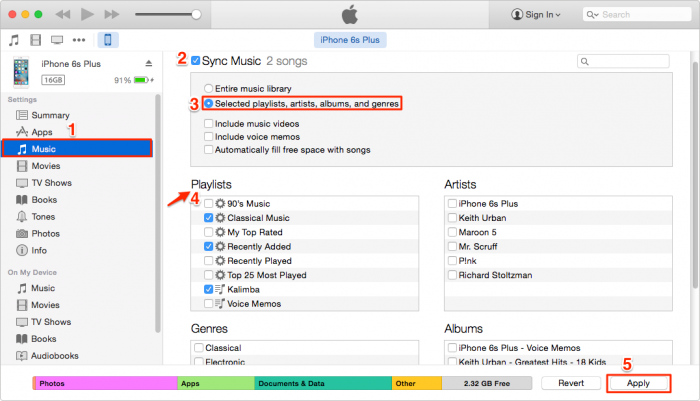
Can you transfer playlists just using iTunes? Yes, you can actually, in spite of a lot of other restrictions. Here’s how to do it:
  1. Plug your device into the computer.
  2. Open up iTunes.
  3. Click on the icon for the device.
  4. Click the “Music” tab.
  5. Check “Sync Music” and "Selected playlists, artists, albums and genres".
  6. Go to the “Playlists” section and pick which ones you want to sync.
  7. Click “Apply” button.
transfer playlist


Which Way is Better?
So, how do these two methods of transferring your playlist stack up against each other? Well, to sum things up:
  • It takes less steps to more playlists back and forth using iMyFone TunesMate.
  • TunesMate hogs less resources than iTunes, so it’s often a faster process.
  • While you have TunesMate open, you can do a lot of other things as well and move other files back and forth, since it is feature rich. With iTunes, you can’t freely move files around.
Which is better? Sponsor ads:
Gihosoft iPhone Data Recovery Free
Free iPhone Data Recovery Software for Windows/Mac
Recover up to 12+ types of files, including contacts, SMS, photos, WhatsApp, Viber, notes, etc.
Restore lost data from iOS devices directly or from iTunes and iCloud backup
Recover iPhone data lost due to iOS upgrade/jailbreak, accidental deletion, device lost or broken
Support all the latest iPhone, iPad and iPod Touch
Both Free and Pro version.
If you lost data after you updated to a new iPhone, you can always use Gihosoft iPhone Data Recovery to get the data back from the old iPhone or backup.You may also like: iphonerecovery.com
If you use android phones, please choose Gihosoft Android Data Recovery.
With Gihosoft Android Data Recovery, no longer afraid of data loss!
Gihosoft RePicvid Free Photo Recovery Software provides a free photo recovery software for windows to help users recover the deleted or lost photo for free.
Jihosoft Android Data Recovery: the best Android Data Recovery software for Windows and Mac to recover deleted contacts, messages, photos, videos, WhatsApp and etc from Android devices.Tips:How to transfer messages from iPhone to iPhone

Sunday, 17 February 2019

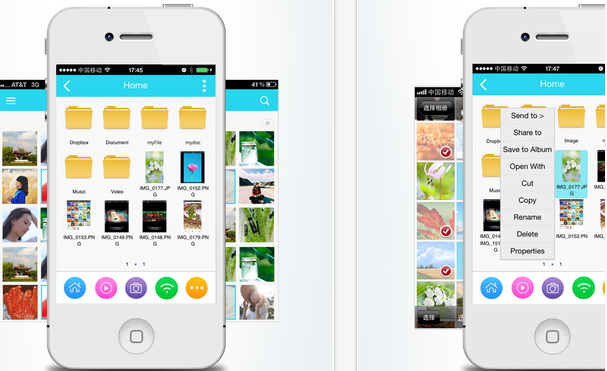
2 Best iOS File Manager for iOS 12 – Comparison & Review


2 Best iOS File Manager for iOS 12 – Comparison & Review
2 FileMaster

The makers claim this app to be the most powerful among all other iOS file master for iOS 12. It allows you to view and edit files along with options for playing audio and video with playback features. It also comes with password protection for individual folders and the app itself.

It comes with multi-language support and requires 47.7 MB of device space. FileMaster is compatible with devices running iOS 5.1.1 or higher and hence can operate on older versions of iPhones as well.


3 Mach Drive

This app also based on iCloud Drive and is one among the best iOS file manager. It claims to support over 40 different file formats, among which 20 of them are edible. It comes with a touch-based gesture control and makes the app easy to operate and provides sync with all other iOS devices.

Mach Drive utilises only 12.8 MB of device memory and comes with a powerful PDF editor, pinch zoom facility, and offline audio spectrum visualizer.Sponsor ads:

Gihosoft Free iPhone Data Recovery:iphonerecovery.com

Free iPhone Data Recovery Software for Windows/Mac

Recover up to 12+ types of files, including contacts, SMS, photos, WhatsApp, Viber, notes, etc.

Restore lost data from iOS devices directly or from iTunes and iCloud backup

Recover iPhone data lost due to iOS upgrade/jailbreak, accidental deletion, device lost or broken

Support all the latest iPhone, iPad and iPod Touch

Both Free and Pro version.

If you lost data after you updated to a new iPhone, you can always use Gihosoft iPhone Data Recovery to get the data back from the old iPhone or backup.

Top 10 Best FRP Bypass Tools to Bypass Google Account on Android Device 2019

Worth reading:download youtube 1080p

If you use android phones, please choose Gihosoft Android Data Recovery

Jihosoft Android Data Recovery: the best Android Data Recovery software for Windows and Mac to recover deleted contacts, messages, photos, videos, WhatsApp and etc from Android

Thursday, 24 January 2019

Order Xiaomi’s China-exclusive Products In India?


Chinese company Xiaomi has a plethora of categories to offer to the users. However, there are many products unavailable in India and users had to take help from the third-party apps to get his or her hands on some.


Making this easy and convenient, Xiaomi has introduced a new cross-border online portal, called ShareSave in India.


The new app will allow users to order for his or her favorite Xiaomi products which are exclusive to China from India.


Additionally, the app provides users with after-sale services as well as home delivery of the ordered products at nominal charges.


How ShareSave Appears: App Overview


The ShareSave app has four sections, upon opening up the app:


The Home section where some IoT-based products are listed for the users to buy at discounted prices.


The Drop section displays products which when shared with friends, will provide up to 100% discount to the users.


The Kickstart section has all the products under the kickstarted initiative, and backing such products will provide users with various shopping coupons.


The Account section has all the users’ coupons, order details, and much more in store for the users to access with ease.


Users can further pair-up with other users to buy the products at exclusive discounts to save some bucks.


If the various Xiaomi products amaze you, go ahead and download the app via Google Play Store and start filing up your cart.


Disclaimer: The app is presently for the Android users, and there is no word on its availability for the iOS users.


Also read: Best Android Cleaner Apps To Boost Performance

Sponsor ads:

Jihosoft iPhone Data Recovery:https://www.jihosoft.com/recovery/ios-data-recovery.html

Jihosoft iPhone Data Recovery

Free iPhone Data Recovery Software for Windows/Mac

Recover up to 12+ types of files, including contacts, SMS, photos, WhatsApp, Viber, notes, etc.

Restore lost data from iOS devices directly or from iTunes and iCloud backup

Recover iPhone data lost due to iOS upgrade/jailbreak, accidental deletion, device lost or broken

Support all the latest iPhone, iPad and iPod Touch.

Tips:

How to transfer messages from iPhone to iPhone

Gihosoft Free iPhone Data Recovery:https://www.gihosoft.com/iphone-data-recovery-free.html


Gihosoft iPhone Data Recovery Free

Wednesday, 16 January 2019

How to hide WhatsApp status from selected contacts 2019


How to hide WhatsApp status from selected contacts:


Open your WhatsApp and go to the “Status” tab where the status updates of your contacts are displayed.


Then once your status tab is opened, tap on the three vertical dots from the upper right corner and go to “Status Privacy”.


On the next screen, you can see “Who can see your status update”. Now if you want to hide your status from selected contacts then tap on “My contacts expect…” option.


After you select this option, a list of all your contacts will be displayed on the screen. Now, finally select the contacts you want to hide status updates from and once done tap on the green checkmark button from the bottom-right to confirm the changes.

That’s it, now your WhatsApp status will get hide from your selected contacts without any hassle. The steps above are genuine and works perfectly fine on your Android device. Although if you later want to remove some contacts from your list then you can easily do it too. Just go on your status privacy and undo the contacts which you have already added. Once done tap on the same green checkmark button to confirm your changes.

But if you are someone who wants to share their WhatsApp status only with a few numbers of contacts and hiding a long list of contacts feel a bit of a burden. Then don’t worry WhatsApp has a solution to this problem. As following the above-mentioned steps you now need to tap on the “Only share with…” option. And similarly, you will find your WhatsApp contacts list on the next screen. Now, select the contacts with whom you wish to share status updates with. And don’t forget to hit the green checkmark button on the bottom-right to confirm the changes. That’s it, you have now selected the contacts with whom you want to share your status update.

Sponsor ads:

Gihosoft Free iPhone Data Recovery:https://www.gihosoft.com/iphone-data-recovery-free.html

Gihosoft iPhone Data Recovery Free

Free iPhone Data Recovery Software for Windows/Mac

Recover up to 12+ types of files, including contacts, SMS, photos, WhatsApp, Viber, notes, etc.

Restore lost data from iOS devices directly or from iTunes and iCloud backup

Recover iPhone data lost due to iOS upgrade/jailbreak, accidental deletion, device lost or broken

Support all the latest iPhone, iPad and iPod Touch

Both Free and Pro version.

If you lost data after you updated to a new iPhone, you can always use Gihosoft iPhone Data Recovery to get the data back from the old iPhone or backup.You may also like: iphonerecovery.com

If you use android phones, please choose Gihosoft Android Data Recovery.

With Gihosoft Android Data Recovery, no longer afraid of data loss!

Must read:Youtube video downloader for pc

Gihosoft RePicvid Free Photo Recovery Software provides a free photo recovery software for windows to help users recover the deleted or lost photo for free.

Jihosoft Android Data Recovery: the best Android Data Recovery software for Windows and Mac to recover deleted contacts, messages, photos, videos, WhatsApp and etc from Android devices.Tips:How to transfer messages from iPhone to iPhone
jihosoft Free iPhone Data Recovery

Tuesday, 15 January 2019

How To Create A Folder In Gmail


So, if you want to differentiate and categorize your emails into different folders/labels then just follow the simple steps mentioned below.


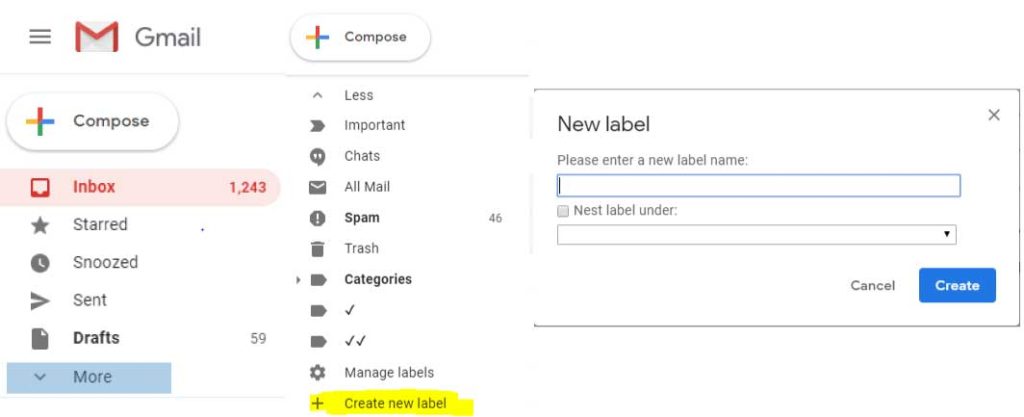
How to create a folder in Gmail:


The first and foremost step for making a new folder in Gmail is to open your Gmail account on your computer.


Then slide on the extreme left corner which will open a slider with all your Gmail account details.


Next, in the slider go to the last option and tap on “More”.


Once it is opened, then tap on “Create new label”.


Now for creating a new folder, enter the name of your label. Or you can even nest a label under your already made folder. Once done click on “Create”.


Your label/folder is now created.

To add an email into your label simply click on the checker box of the message you want to add. Once clicked you will see a number of option above. Click on the last option that will be of “Labels” and now simply select the label you want your email in.

Note: Even though the steps mentioned are for a computer but your new folder will still show in your Android device.

So, following are the steps through which you can create a new folder and can easily unclutter your inbox in no time. And they are indeed very useful. As through labels, you can add any conversation which will also help you to search messages in a quick and easy way. So, long gone are the days when you have to compromise with your over-whelming Gmail inbox as with folders your life gets simpler.

Sponsor ads:

Gihosoft Free iPhone Data Recovery:https://www.gihosoft.com/iphone-data-recovery-free.html

Gihosoft iPhone Data Recovery Free

Free iPhone Data Recovery Software for Windows/Mac

Recover up to 12+ types of files, including contacts, SMS, photos, WhatsApp, Viber, notes, etc.

Restore lost data from iOS devices directly or from iTunes and iCloud backup

Recover iPhone data lost due to iOS upgrade/jailbreak, accidental deletion, device lost or broken

Support all the latest iPhone, iPad and iPod Touch

Both Free and Pro version.

If you lost data after you updated to a new iPhone, you can always use Gihosoft iPhone Data Recovery to get the data back from the old iPhone or backup.You may also like: iphonerecovery.com

If you use android phones, please choose Gihosoft Android Data Recovery.

With Gihosoft Android Data Recovery, no longer afraid of data loss!

Must read:Youtube video downloader for pc

Gihosoft RePicvid Free Photo Recovery Software provides a free photo recovery software for windows to help users recover the deleted or lost photo for free.

Jihosoft Android Data Recovery: the best Android Data Recovery software for Windows and Mac to recover deleted contacts, messages, photos, videos, WhatsApp and etc from Android devices.Tips:How to transfer messages from iPhone to iPhone

jihosoft Free iPhone Data Recovery

Download iOS 13.2 and iPadOS 13.2 Beta 2

Apple today released the second developer beta of iOS 13. 2 and iPadOS 13.2 for all compatible iPhones and iPads. The first beta of iOS 1...