Thursday, 25 October 2018

How to Reset iPad without Password 2019

How to Reset iPad without Password 2019


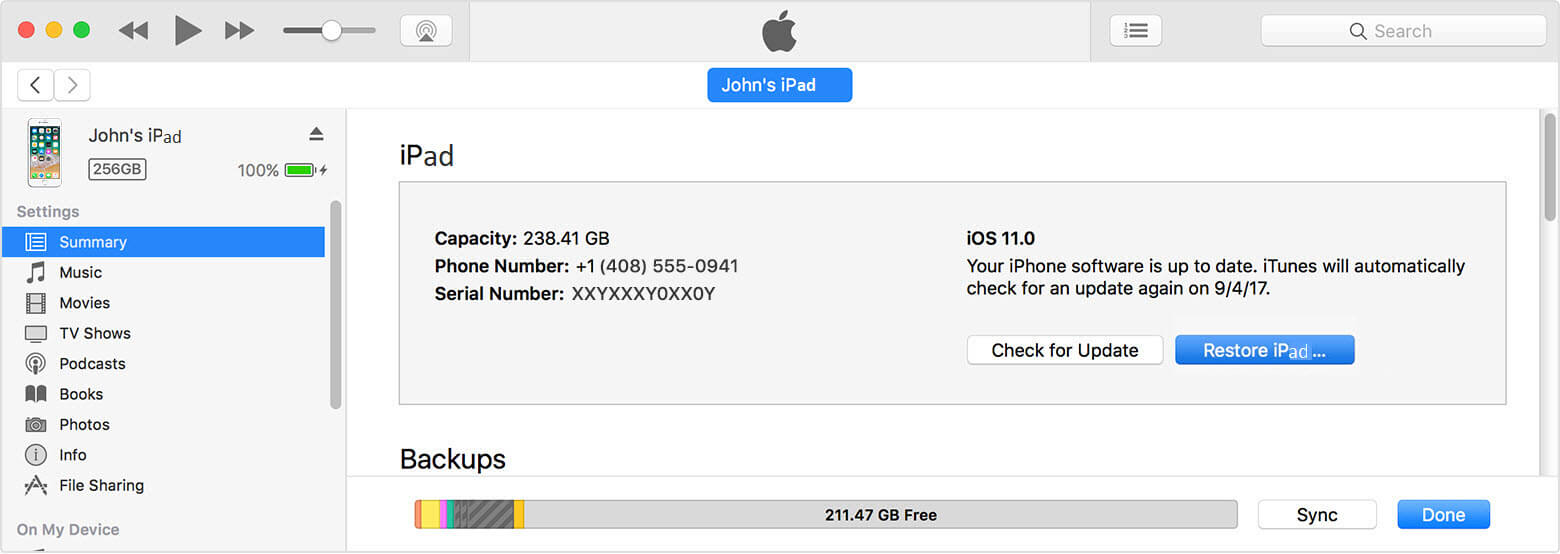
Use iTunes to Reset iPad without Password

iTunes is a good service for unlocking and factory resetting an iPad when the password is forgotten. If you’ve synced your iPad on iTunes before now, you can follow these steps to factory reset your iPad on iTunes.

Step 1. Connect your iPad to the computer you synced with.

Step 2. Open iTunes and wait for it to sync and back up your iPad. (If iTunes asks for passcode, you need to change to another iTunes you synced with iPad before.)

Step 3. When it’s done, click “Restore iPad”.


Step 4. Once done, you can choose to restore from iTunes backup when you set up your iPad.

If your iPad is running on iOS 11.4.1 or later, the feature “USB Accessories” in “Settings > Touch ID & Passcode” should be enabled.

But if this way is available for you, you won’t lose any data.
3 Use iCloud to Reset iPad If You Forgot Passcode

As we earlier mentioned, iCloud is a remote way to reset iPad when Find My iPad is enabled. But it comes with some limits. Make sure you satisfied with these requirements first:


Your iPad must be associated with an iCloud account and has “Find My iPad” enabled.


You must know the iCloud account and passcode.


Your iPad must be connected to internet, no matter the cellular data or WiFi.

Then follow the steps below to remotely erase your iPad:

Step 1. Go to www.icloud.com and enter your Apple ID and Password.

Step 2. Navigate to “Find iPhone” tab and select it.

Step 3. Click “All Devices” and select the iPad you want to unlock.

Step 4. Click “Erase iPad” and confirm it to reset your iPad.


4 Use Recovery Mode to Reset iPad If You Forgot Password

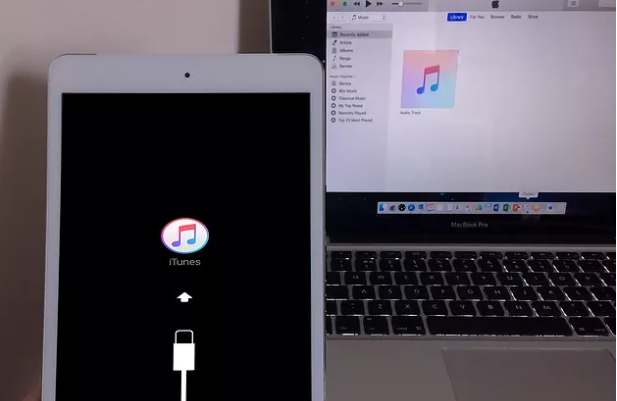
The Recovery mode as we earlier said is the solution for those who never synced their iPad on iTunes and do not have iCloud enabled in the device. Here is how to factory reset an iPad using recovery mode:

Step 1. Connect your iPad your computer using a USB cable.

Step 2. Launch iTunes.

Step 3. While connecting, switch your iPad in recovery mode: press and hold the Home button and the Sleep/Wake button until you can see the iTunes logo on your iPad screen.


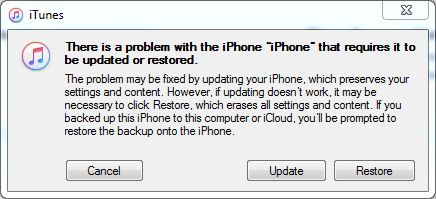
Step 4. On computer, you will see the option to Restore or Update. Choose Restore here. It will download the firmware package for your iPad and then restore iPad to factory settings.


If it takes more than 15 minutes to download the firmware package, your iPad will exit the recovery mode. At that time, you need to repeat the steps again and again until it finally works.


If you lost data after you updated to a new iPhone, you can always use Gihosoft iPhone Data Recovery to get the data back from the old iPhone or backup.

Must Read:Jihosoft iTunes Backup Unlocker

You may also like:online youtube downloader

iPhone Backup Extractor - Extract Data from iPhone Backup


Sunday, 7 October 2018

Tips to Use Picture in Picture Mode in Android Oreo


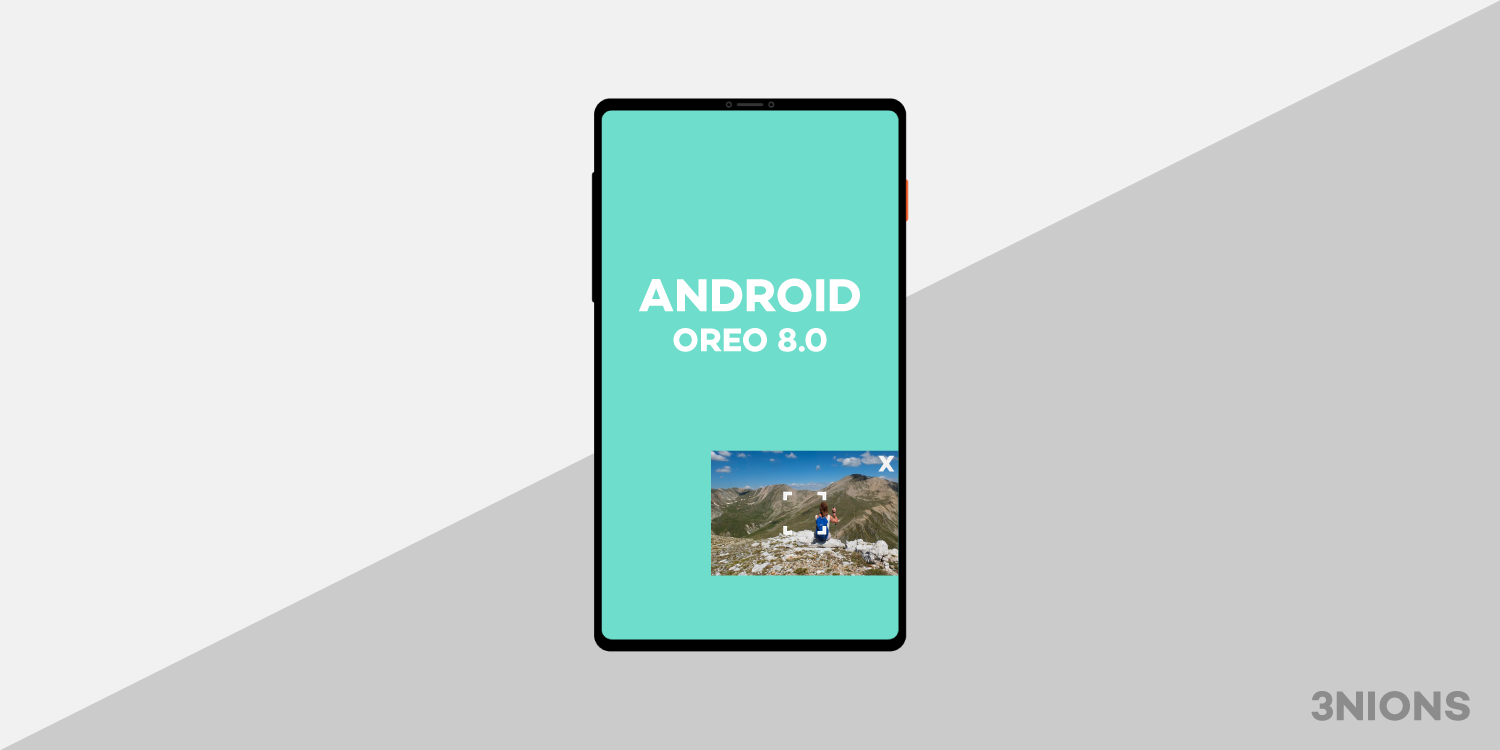
The latest version of Googles Android operating system Android 8.0 Oreo has a Picture in Picture[PiP mode]. This mode allows you to shrink down videos to a resizable window. It’s like the PiP setting on your tv but for apps. Its a little hard to set up but what’s more of a problem is that it does not work with every app. The developers have to implement PiP mode on a case by case base. Here we have compiled a list of apps that support this mode and also will show you how to use picture in picture mode for Android.


Applications that support Android 8.0 Oreo’s PiP mode are:


Youtube


VLC


Google Play Movies & TV


Google Duo


Google Maps


Chrome
How to launch Android 8.0s PiP mode?

There isn’t one fixed way to launch Android 8.0 Oreos PiP mode. Most apps switch to a floating window’s view with a tap of Android Home button, but that’s, not the case always.

You can take Google Chrome for example. To get the mode working properly you would have to watch the video in full screen before taping the home button.

Youtube is another case entirely, Youtubes PiP mode requires a subscription to Youtube Red.

To figure out how to launch an apps picture in picture mode, you will have to play around in the apps setting.
How to disable Android 8.0 Oreo’s picture in picture mode for specific apps?

Without any doubt, the picture pin picture mode can be quite useful and fun, but it can also be irritating if triggered by mistake. Luckily you can disable it in a few easy steps.
To disable it:


Open the settings menu on your phone.


Tap Apps & Notifications and then tap on the Advanced menu.


Click on Special App Access.


Search for PiP option and then click on it.


You will get to see a list of all installed apps that support this mode. They are enabled by default to disable something tap it and slide the Allow picture in picture toggle to off.
You May Also Like:
How to Hide Private Pictures on Any Android Phone


These are the ways in which you can enable and disable Picture in Picture mode on your phone and apps. If you want more tutorials or have any topic recommendations then comment it down below. Also, don’t forget to share this article with your friends.


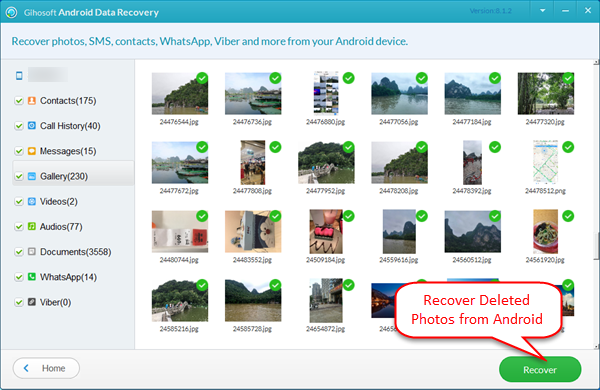
Tips: If you are a photo enthusiast, you must have a lot of beautiful photos on your phone. When tidying up these photos, you may have to delete some of the photos to free up space. However, what if you regret after deleting a photo? Do not worry! Here is a powerful Android photo recovery software, that’s Gihosoft Free Android Data Recovery, which can help you quickly retrieve accidentally deleted photos from Android! To forestall is better than to amend, click on the button below to download and install it on your computer now!


Wednesday, 12 September 2018

How to Recall WhatsApp Messages on Android


WhatsApp’s “Delete For Everyone” feature lets you recall your WhatsApp messages within one hour, eight minutes and sixteen seconds. Once you pass that time duration, you can't revoke WhatsApp messages.


Not only “Text,” but you can also recall all the media types as well as quoted messages and status replies.

Also Read: How to Restore Deleted WhatsApp Messages on Android


This feature is available for both individual and group chats. In this instance, I am using it on the individual chat. With that said, let's see the steps to recall.
Steps


​Open WhatsApp.


​Now, open the chat that contains the messages you want to revoke.


Select the message(s) that you want to recall.


Tap the “Trash Can” icon at the top.


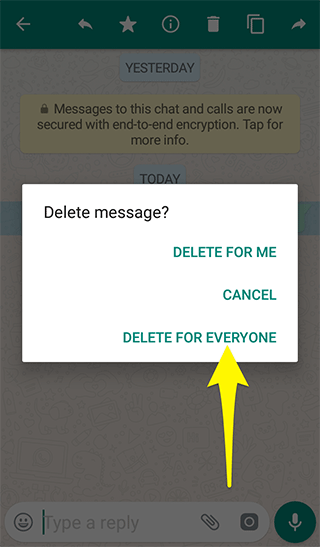
In the popup, tap “Delete For Everyone.”


That’s it. The message(s) are deleted from your chat and recipient’s chat (even from their notification too).

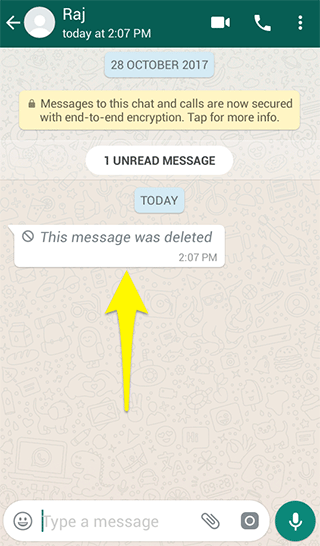
Your recipient device may look like this:


In the place of the deleted message, they can see this message: "This message was deleted."

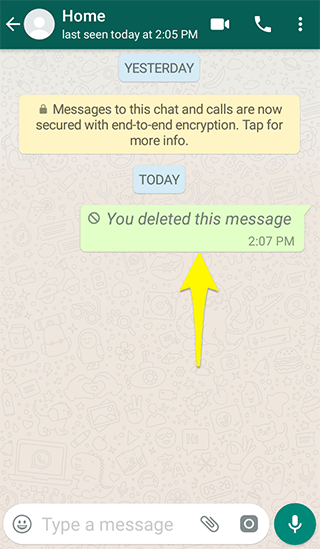
Your device may look like this:


In the place of the deleted message, you can see this message: "You deleted this message."

Here are few important things to note:


Since the messages are delivered instantly (as always) - there is a chance that the recipient may view your message before you delete it.


​If the recipient didn't receive the revoke request of the sender within one day, one hour, eight minutes and sixteen seconds because of some reasons, then the message will not be revoked.


​Keep in mind that you'll not be notified if the deletion is not successful.


This feature is available for iPhone, Android, and Windows phones and not available for Blackberry and Symbian phones.

Additional Hint

“Delete For Me” option only deletes the message from your device. The message in the recipient device will not be affected when you use this option.

I hope that this post is useful to you. If it is, share this post with your friends.​
More Related Tips You May like:

How to Backup and Restore WhatsApp Message on Android or iPhone

How to Change Your Phone Number On WhatsApp

Top 8 Methods to Run Two WhatsApp Accounts on One Phone Easily

Thursday, 6 September 2018

10 Websites for Creating Free Smartphone Mockups 2019


Digital mockups are a great way to showcase your work such as a new app idea, new logo or new innovative UI design. But making one is not an easy task and usually requires knowledge of tools such as Photoshop and Illustrator.


Learning these two is a challenge in itself and no one has the time to show their app idea to someone at the back of a paper napkin. Online mockup creators are the tools which make this process as easy as a matter of few clicks.You may also like:jihosoft iphone data recovery

See Also:

The Best Photo Album Maker Apps with Songs

The Top Best Photo Gallery for Android

How to Make Video to Gif on Android


But if you go searching on Google, most of the services you find will be paid. So we have compiled a list of top 10 websites, which we also use often, for creating beautiful mockups for free.

NOTE: While none of these sites show intrusive ads, disabling your ad blockers is recommended as some of the web elements may not load completely leading to usability issues.
1. SMARTMOCKUPS.COM

Our first pick, Smartmockups, features a huge collection of mockups for different mediums such as digital and print. You can visualize your idea on a smartphone, tablet, laptop, mugs, cups, stationery, and even t-shirts.


Signup is required to use the service and the free account has some limits like it restricts customization of the final mockup. It does offer basic tools such as Align, Crop, Rotate, and Flip to alter the uploaded image but doesn't offer Glare settings. Another nice feature is that you can download the final mockups in high resolution with a free account.

Visit Smartmockups.com
2. MOCKUPHONE.COM

The second website on the list doesn't have a collection as large as the one at Smartmockups, but they do specialize in one category. All the mockups at MockUPhone have a plain white or colored background.


It allows uploading local images but doesn't give any edit options like crop or rotate. So make sure you upload your images after necessary edits. The site mainly caters to Apple products and their Android device list isn't up to date with the latest smartphones. Both the portrait and landscape orientations of the mockups once generated are sent to your email (yes, you must provide one) as it doesn't offer an instant download.

Visit MockUPhone.com
3. MOCKUPER.NET

Mockuper offers mainly mockups of gadgets with a few other items such as business cards and some apparels. It provides over 637 community-sourced mockups containing links to the original creator.


Mockuper is also one of my favorites as it offers several options to edit uploaded images and lets you download final mockups in different resolutions. Source images can be uploaded locally or from an URL. Once uploaded you can crop, align, flip, zoom, and even choose how to mimic a glare (reflection) on the screen. The site's UI is also very easy to understand and use.

Visit Mockuper.net

TIP: Click on the All Mockups button on the top bar of the page to see all the 637 mockups.
4. MAGICMOCKUPS.COM

MagicMockups is a very simple mockup generator and has a limited collection of devices, mostly iPhones. All the other devices such as laptops and desktop PCs are from Apple's product family.


But its strength lies in turning the beautifully shot stock images into mockups. You can only upload images locally, and the site doesn't offer editing options. You will notice that the background of the mockups are mostly wooden tabletops and dark surfaces. Finally, this site puts no restriction on the resolutions while downloading the final mockups.

Visit MagicMockups.com
5. DUNNNK.COM

Before you start to imagine your mockups on LeBron James jersey, let me tell you that Dunnnk has nothing to do with Basketball. It is another simple mockup generator which mainly offers gadget mockups.


Majority of their mockups are in POV-style with devices being held in hand. However, the list of Android devices is not up to date. Dunnnk only supports local upload and offers no image editing tools. Also, the final mockups can be downloaded in only one fixed resolution.

Visit Dunnnk.com
6. MOCKUPSJAR.COM

MockUpsJar, like the first one on the list (SmartMockups), has an extensive collection of mockups and follows the Freemium model. They offer both free as well as paid plans. On MockUpsJar, selected mockups are free, and the final downloads are watermarked, but sensibly as to not make them unusable.


Images can be uploaded locally only and post-upload they can be cropped, zoomed and rotated as per your need. The final mockups can be downloaded in up to 2K resolution. Finally, signup is required to download any of the mockups.

Visit MockUpsJar.com
7. MOCKUP.IO

Mockup.io is quite different from the others on the list. It is more of a wireframe and prototyping mockup tool for smartphone apps, to visualize how the UI and UX of the app will look and behave. As such there are no phones placed in pretty backgrounds so you just get a basic phone frame.


There are abundant collaboration features for teams to work together. Using this tool, you can upload a bunch of your app's design sketches and link all of them to show how the navigation and interaction will work in reality. This tool is the best one for those who want to show a dynamic mockup of their work.

Visit Mockup.io
8. MOCKDROP.IO

As one of the simpler websites on the list, MockDrop.io doesn't fiddle with signups, image edits or emails. Just select a mockup, upload your image and hit the download button. That's as simple as it gets. The designs are also one of the better ones as compared to others on the list.


The mockups are community sourced, like with the most others on the list, with the original creators link shown on each mockup. The final mockups are downloadable in high resolutions and the collection, as usual, favors the Apple devices.

Visit MockDrop.io
9. THREED.IO

Threed is the second unusual mockup creator on this list after the Mockup.io site. Threed is a 3D mockup generator, where you are given a single iPhone-like 3D model of a smartphone.


You can drag, rotate, zoom, change the camera angles, select screen glare and plenty other things to get a get a better idea of how your designs will look on an actual device. The generator is smooth and easy to understand.

Visit Threed.io
10. MOCKUP.PHOTOS

The last one on our list is Mockup.photos, a freemium site that also offers freebies in the form of select mockups. There are around 380 free mockups which include a mix of smartphones, tablet, laptops, photo frames, and more.


The site lets you upload images locally or from a URL. There are no image editing options for the uploaded images, and the final mockup can be downloaded in only single high resolution. Upgrading to their paid plan gives you access to over 900 mockups and few other features too.

Visit Mockup.photos
THE DEVICES SUPPORTED

For your convenience, I have created a handy comparison table below to understand which website supports what type of devices.

SmartMockups is the only service which supports all types of digital devices as well as print medium.


THINGS TO KEEP IN MIND

After checking the above list, you must've realized that the process of making a mockup is just a matter of a few clicks. But still, there are few things to consider if you want a mockup which is better than just good. First is the resolution of the image you upload. All the mockups usually show the required/supported resolution, and it's better to stick with the suggested resolution as well as the aspect ratio to get the best results.


Second is the contrast and color matching. Choose a mockup with a background which doesn't clash with the prominent color scheme of your image. The below mockup will help you visualize this.


Also, if the image you upload is not of a high resolution, refrain from downloading a very high resolution version of the final mockup as it will not accentuate your work.

Lastly, as all these sites are offering their services for free without showing intrusive ads, consider donating or in case of freemium sites, subscribing just for a month to help them. If you come across any other such cool sites to make mockups, do share with us in the comments.

Must Check Out Posts:

Recover Deleted Call History from Android

How to Root Galaxy S6/S7/S8/S9

Fix Samsung Galaxy Not Receiving Messages

Fix SD Card Not Detected on AndroidHow to Schedule Text Messages on Android

How to Fix Android won’t Turn On or Charging


Jihosoft Android Data Recovery is the most powerful and professional data recovery software for Android that can restore deleted or lost contacts, photos, videos, audios, SMS, call logs, WhatsApp chat, Viber messages from any Android devices due to accidental deletion, virus attack, formatting. It supports all popular Android smartphones and tablets like Samsung, HTC, LG, Huawei, Motorola, Nexus, etc. In the meantime, you will be guided step by step if you never used this kind of tool before.


Best Samsung Data Recovery Software: Easily Recover Deleted/Lost Photos, Messages, Contacts, Call Logs, WhatsApp,
Musics, Videos etc. from All Samsung Devices


Monday, 3 September 2018

5 Best Free Music Player Apps for Android & iOS 2019

5 Best Free Music Player Apps for Android & iOS 2019


Don’t you sometimes wish to sing along to your favorite tunes? Or check whether you’ve been understanding the lyrics correctly so far? If your answer is yes, you’ve landed on the right page.

I’ve noticed that a lot of people try and lip-sync to the latest tracks but fail miserably; and its hilarious to watch! Yes, that has happened to me as well. There are times when I hear a song and end up loving it so much that I play it on loop, and yet, I never seem to get the words right. I sing as per my comprehension and then it turns out, the singer was lining out something completely different. Funny right? I literally used to take print outs of lyrics when I was younger just to be able to sing along.


Now, with hundreds of songs being released every month, its a bit hard to keep up; especially those rap songs! But you know, mobile-tech has advanced by miles, and there’s finally a way to see the lyrics while listening to music rather than than using a primordial method like I did.Jihosoft Android Data Recovery: the best Android Data Recovery software for Windows and Mac to recover deleted contacts, messages, photos, videos, WhatsApp and etc from Android devices.

Whether you’re a casual music lover or a professional karaoke singer, we’ve rounded up the top-rated best music player apps for Android that you can use to not only play the hottest tracks but also get the lyrics.
1. Musixmatch:

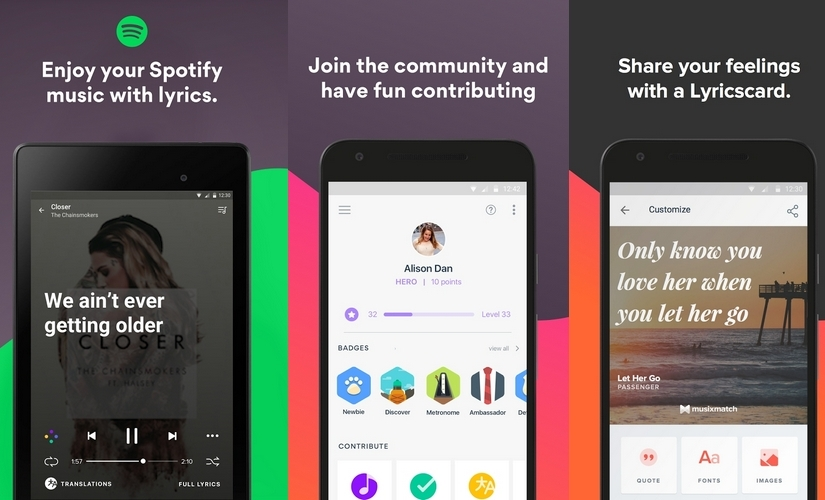
Musixmatch is probably the most popular app in this category; and if I had to pick just one, this would be it. The app boasts of the most extensive catalog of lyrics that can be integrated with other music streaming apps like YouTube, Play Music, Pandora, Apple Music, SoundCloud, and Spotify. Aside from offering lyrics, Musixmatch also helps you to translate songs into more than 60 languages.


A few of its other features include real-time notification to fetch the “Floating Lyrics” widget, “Smart Seek” to quickly look-up lyrics, sharing song lyrics using “LyricsCard”, and use playback options even on a locked screen. It also offers additional features such as offline lyrics and no ads, but you’ll have to upgrade to the premium version to access them. Note that Musixmatch is compatible with Chromecast, iOS and Android devices including Android wear devices.
2. Lyrics Mania:

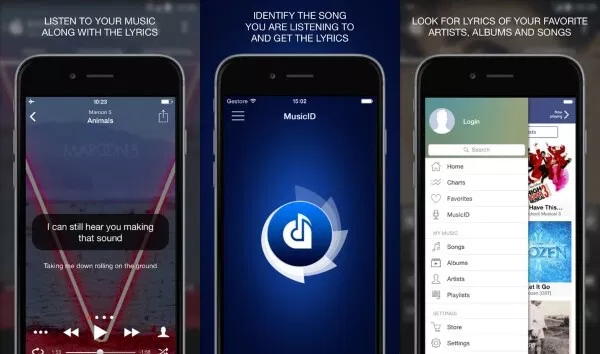
Lyrics Mania is another great music app with lyrics, boasting of an excellent rating on both, the Play Store and the App Store. This app comes with millions of song lyrics that you can discover just by keying in the song title/artist in the search bar. As with other music player apps (with lyrics), Lyrics Mania also allows you to play your favorite songs, extract lyrics in real-time while you’re tuned into the music, and translate songs into other languages. Moreover, it works across music apps like Spotify, Apple Music, Google Play Music, and Amazon Music. Remember to turn the “Device Broadcast Status” option on when using Spotify.


One of its key features (and my favorite) is MusicID. This feature enables you to identify songs playing around you within seconds, and fetch accurate lyrics for the same. Lyrics Mania is supported on iOS as well as Android platforms. The only downside that we stumbled upon was ads; tons of it!
3. Quicklyric:

Though a relatively lesser known music app, Quicklyric is rapidly making its place in the hearts of millions of users around the world. It sets itself apart in that it claims to solve the problem of performing a manual search upon playing a new track every single time. With Quicklyric, you can get lyrics instantly using the “lyrics finder”. Moreover, this app let’s you store song lyrics to be able to view it offline while also supporting synchronized lyrics (especially useful if you’re into Karaoke). A few other features include song identification using mic, downloading capability across services like Play Music, Spotify, and the like, floating lyrics widget, stunning themes, night mode, ad-free experience, and Android wear support. Note that the last couple of features are only available on the Premium version.


Quicklyric is supported on a wide gamut of streaming platforms including Napster, PowerAmp, Rocket Player, VLC, GoneMAD, Spotify, Google Play Music, Phonograph, Shuttle Music Player, and more. The only disadvantage is that it isn’t available on the App Store.
4. Genius:

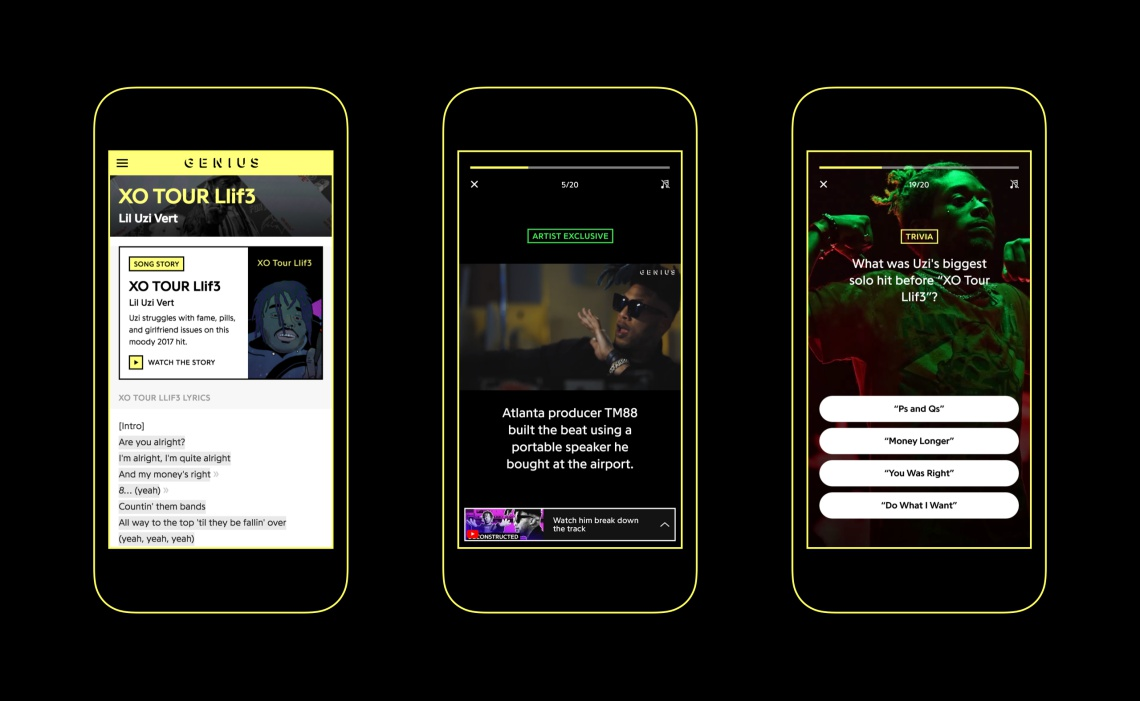
Genius is yet another brilliant app that is comparable to the likes of Musixmatch and Lyrics Mania. It features over 1.7 million songs that you can discover as per songs, artists, or categories like “What’s Hot on Genius”. Apart from lyrics, Genius also boasts of the Genius Community, where you can explore the music microcosm, filled with knowledge and information that is crowd-sourced from the fans themselves. Recently, the app also introduced a feature that allows users to retrieve lyrics for the music that plays around them and simply hold your phone up close to the source of music, by tapping the soundwave button. You can also match song lyrics with your music library and playlists on other services like Soundcloud, Play Music, Spotify, and Pandora.


Although Genius does work offline, this aspect still needs a lot of improvement as users encounter frequent crashes and freezes. That said, Genius works on not only Android but also on iOS devices. Its also worth noting that Genius doesn’t work as a music player. Rather, it is mostly meant to get lyrics and will also show up videos if you search for songs manually.
5. ALSong:

Developed by ESTsoft Corp., ALSong is an upcoming music player with real-time lyrics (even on a lock screen) of over 7 million songs. Some of its key features include an efficient sync lyrics function, auto-save to play without an internet connection, floating lyrics, manage playlist, send and receive medial files using the file toss option, timer, and language. In addition to this, ALSong also shows you a daily chart (regularly updated) so you can listen to the latest hits without having to search for them manually. Its SongSong Mobile service is a free music player that supports various audio formats including mp3, wav, mod, ogg, flac, and wma file playback.


In Conclusion

All the apps mentioned in our list can be downloaded, installed, and used for free. However, majority of them do contain ads so if that is going to be a huge put off for you, we’d recommend that you upgrade to the premium versions from within the app. There are a few other apps that we decided to skip such as Metrolyrics (for iOS). That is because they’re not as polished as the ones mentioned above. Having said that, you could still give it a try and let us know your favorite one in the comments down below!
More Wonderful Android Apps Not to be Missed:

Top 10 Best Screen Recording Apps for Android Not to be Missed

Top 10 Ad Blocker Apps for Android – Stop Pop-Ups & Block Ads Easily

Top 10 Best Free Android Photo Editors in 2018

Top 8 Methods to Run Two WhatsApp Accounts on One Phone Easily

Top 10 Best Free Video Editors for Android in 2019


Sponsored by Gihosoft Free Android Data Recovery Software

Wednesday, 29 August 2018

How to Fix iPhone Not Showing Up in iTunes (2018 Updated)


How to Fix iPhone Not Showing Up in iTunes (2019 Updated)
1. Check USB Cablecar, charging, iphone

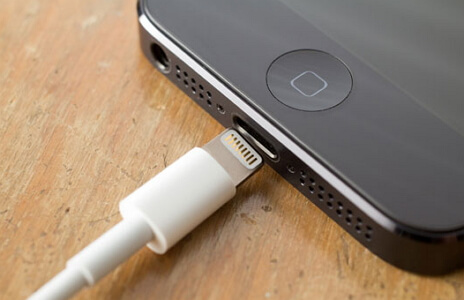
There are many reasons why your iPhone not showing up in iTunes. One of these reasons could be because of bad connectivity. You can test if your USB cable is defective by using another cable to see if your iPhone will get detected by your PC. You can also check to see if the USB port of your iPhone is damaged or has any dirt; Lastly, you can try connecting your iPhone to another computer to see if the computer USB port is working properly.You may also like:Gihosoft Mobile Transfer: 1 Click Data Transfer from Phone to Phone


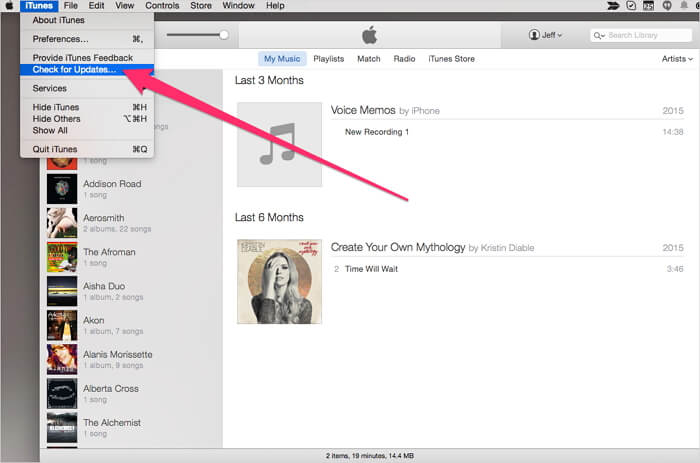
2. Check iTunes Version

If you have recently bought an iPhone and connected to the old version of iTunes on our PC or Mac, your iPhone not showing in iTunes may be a problem you may experience. Every new iPhone will be having the old version of iTunes and will need to be upgraded to the new version of iTunes so that your iPhone can show up on iTunes.


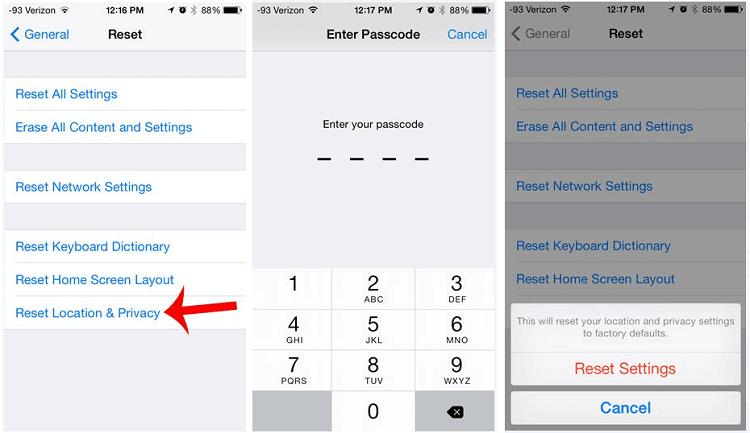
3. Reset Location and Privacy Settings

Some of the buttons you press without knowing what they do on your iPhone could be the reason your iTunes not recognizing iPhone. Like if you accidentally pressed the Don't trust button on your iPhone. You can easily fix this problem.

You may also like:Gihosoft iPhone Data Recovery

Must Read:Gihosoft Free Android Data Recovery

Must Read:Jihosoft iTunes Backup Unlocker

Jihosoft iTunes Backup Extractor free is a powerful tool to recover and extract important data from iPhone, iPad & iPod touch backup on Windows or Mac.

You may also like:

Gihosoft Total Video Converter is a professional all-in-one video tool that enables you to convert videos and audios into various different formats.You may also like:online youtube downloader

Step 1: Go to your iPhone Settings.

Step 2: Then click on the General tab.

Step 3: Lastly click on Reset location & privacy tab.


When you connect your iPhone again the Trust this computer will appear. Please note that this may also delete some of the iOS apps setting that are allowed to use your location.
4. Uninstall Security Software on Mac

If you install security software made by other companies to your iPhone other than Apple, iTunes not connecting to Apple servers or your iPhone may be a problem. You may even get a numeric error message when you try to sync, restore of backup your iPhone. To fix this problem:

Step 1: Hold down the Option key, click on the Apple menu then click on System information or System report.

Step 2: A list will be displayed on the left. Select USB.

Step 3: Under the USB device tree check to see if you can see your iPhone, iPad or iPod then uninstall the third party security software.
5. Update Driver Software

Sometimes iTunes not recognizing iPhone may be caused by driver software meaning that your device's drivers need an update.

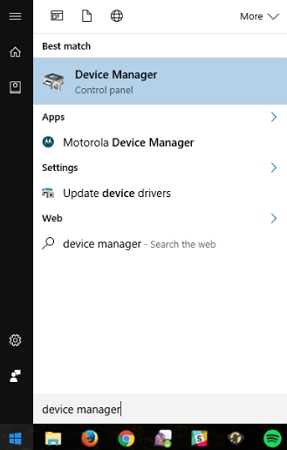
Step 1: On your computer right click My computer, tap on Properties and click on Device manager.

Step 2: Right click on Apple mobile device USB driver.

Step 3: Then click on Update driver software.

Step 4: Restart your PC, connect your iPhone to your computer then open iTunes to see if your iPhone is recognized.


6. Reinstall Apple's Windows Drivers

At times your Apple drivers will not work properly making your Windows PC not to recognize your iOS device even if you click Trust this computer many times. The drivers on your device could be causing iPhone not showing up in iTunes and need to be reinstalled. You can do this by:

Step 1: Close iTunes then using a USB cable connect your iOS device to your PC. Click on the Start menu then tap on Device manager. Click on the Device manager option that appears.

Step 2: Under Portable devices, search for your iPhone or iPad in the device manager. Once you have found your device right click on it and choose Update driver software.

Step 3: A Window will pop up then select Browse my computer for driver software.

Step 4: Then select Let me pick from a list of device drivers from my computer.

Step 5: On the next screen click on Have disk button.

Step 6: On the Install from disk window, click the Browse button then navigate to c:\program files\common file\apple\mobile device support\drivers\usbaapl64.inf. Double-click the usbaapl64.inf file to select it then click Ok in the Install from disk window. If you are using the older 32-bite computer, the driver may be in c:\program files (x86)\common files\apple\mobile device support\drivers instead.

Step 7: Your computer will then install the drivers and upon completion, close the device manager then restart iTunes. Your device should be recognized without any problem.

Tuesday, 28 August 2018

16 Best Ad Blocker Apps For Android (Our Favourite Collection) 2019 Top List


16 Best Ad Blocker Apps For Android (Our Favourite Collection) 2019 Top List

If you’re fed up of ads popping up on your Android device every time you try browsing, downloading, or operating an app, you’ve touched down the right runway.

Sponsored Ads: With Gihosoft Free Android Data Recovery Software, you are no longer afraid of data loss!Gihosoft Free Android Data Recovery

The digital world has expanded beyond our imagination, with an audience-reach bigger than ever before. And hence, large chunk of our society now uses the www to further their career; be it a business trying to promote a product/service or a part-time blogger trying to monetize their blog-site. Most ads are in sync with your interests. But as creepy as it may sound, they do this by tracking your browsing history or social activities. However, there are still many ads which are just outright annoying, repetitive, and irrelevant.You may also like:Gihosoft iPhone Data Recovery

In the case of websites which offer their content for free, displaying ads become critical to their survival, or to gain more popularity. Nevertheless, quite a few of them abuse this money-making opportunity, plaguing the entire site with unwanted commercials and affecting a user’s overall experience; to the point where it becomes absolutely necessary to restrict ads. Recently, we have also shared Best Screen Recording Apps for Android.


We’ve rounded up a comprehensive list of the top-rated Ad-Blocker apps for Android that you can get to get rid of those pesky advertisements. Take a look:

Best Ad Blocker Apps For Android 2019

AdAway:

One of the most commonly reviewed Ad-blocker app to have received tons of appreciation, is AdAway. It is perhaps the most effective and reliable app that you can currently get. It makes use of host files to reroute ads to 127.0.0.1; be it any kind, i.e. pop-ups, game-ads, banner ads, etc. You can even manually blacklist or whitelist websites if you need to! However, one very important point to note is that though AdAway is an open-source app that’s completely free to download, it is only available to those with rooted phones. If you ask us, we’d say its totally worth rooting your phone for this app, if blocking ads is a huge priority for you.

Download

AdClear by Seven:

AdClear is for you non-rooted Android folks and can be accessed for free. It shuts out not only the encrypted or intrusive ads that you come across on several websites but also deters ads on YouTube. To boot, this app has Firewall and Doze features which help a lot in reserving battery and bandwidth, while increasing page load-times. You can also be assured that no malware would enter through any advertisement when using AdClear. Although it doesn’t give you the level of control AdAway does, it surely does its work incredibly well.

Download

Adguard:

Adguard can be downloaded by both, rooted and non-rooted Android phone users. It is an open-source app that you can download straight off the Google Play Store, for free. Similar to Adclear, this app too is VPN-based so aside from barring ads on the web, you can also avoid them across other applications including games. What’s more? Adguard is highly customizable and allows you to pick from 20 different rule-lists pertaining to filtration for ad-blocking. Undoubtedly, it is one of the best ad blocker apps for Android phone. Having said that, the only limitation is that it doesn’t work on any other browsers except Yandex and Samsung Internet.


DownloadQR-Code

Adguard Content Blocker

Developer: ADGUARD SOFTWARE LIMITED

Price: Free

Adblock Browser/Plus:

Unarguably, one of the most popular and efficient ad-blocker apps on Android, Adblock Browser is an open-source app which is available officially on the Google Playstore, for free. Its cousin, Adblock Plus is published by the same developer, albeit, with a few key differences. The Adblock browser works extremely well if you wish to only keep the ads at bay while browsing on your phone. But if you want more features, such as a system-wide ad-blocking including pop-ups, banner ads, while keeping your device safe from any malicious viruses, you may want to get the Adblock Plus. That said, its suitable solely for Samsung users running the Samsung Internet 4.0 or higher. Note that both these apps function on rooted ((more features and customization) as well as non-rooted phones.



DownloadQR-Code

Adblock Browser for Android

Developer: eyeo GmbH

Price: Free



DownloadQR-Code

Adblock Plus for Samsung Internet - Browse safe.

Developer: eyeo GmbH

Price: Free

DNS66:
If you’re a tech-savvy person, you might be aware that the VPN-based ad-blockers are the best type as they go down to the DNS level in order to block ads and host names. Basically, such apps use DNS to generate a local VPN interface which then receives all the server-traffic, thereby blocking ads not only on your browsers but across the entire mobile system. These apps are far more advanced and enhance your phone’s overall performance as well as battery-life. DNS66 is perhaps the best app in this category. What’s more? You don’t need a rooted device to install this app. The only downside (or upside, depending upon how you look at it), is that it might seem slightly difficult to use due to its advance features.

Download

Blokada:

Blokada is a robust ad-blocker for Android that offers superlative speed, stability, while ensuring minimal battery and data usage. As with majority of the apps mentioned on this list, Blokada is also an open-source service that is free, and easy to use. It keeps your personal information safe and allows you to filter the websites that you wish to be blocked or unblocked. We’ve gone over a legion of forums and review sites before listing this app here and can confidently recommend it to you. However, you must keep in mind that Blokada is not available on the Google Playstore.

Download

Free Adblock Browser:

As the name suggests, Free Adblock Browser is essentially an Android browser which let’s users enjoy a web-experience sans ads, focusing more on the content they’re actually looking for. You can use it to do away with ads while browsing, pop-ups, auto-play commercial videos, and banner ads. Similar to Blokada, this service protects you from online trackers who try and extract data or consumer behavior. Additionally, it is also very battery-efficient and doesn’t eat up data more than required. The best part? It is officially available on the Playstore and is very user-friendly so if you just want a simple app that blocks ads on your browser without going through too much trouble, this is the one to get!


DownloadQR-Code

Free Adblocker Browser - Adblock & Popup Blocker

Developer: Adblock - Rocketshield, Inc.

Price: Free+

You may also like best call blocker apps for Android.

Adblock Fast:

Adblock Fast is much like the other ad-blockers listed here. It is free, can be downloaded from the Playstore, and does not require you to root your Android device. However, the most unique feature of this service is that unlike other apps, it even blocks “acceptable ads” so an ad-free web experience in the truest sense is guaranteed. Other than that it also offers least possible usage of disk space, CPU cycles, and memory space. All the good stuff aside, Adblock Fast is only accessible on devices with Samsung Internet browser (4.0+) so make sure to install that before getting the app itself.


DownloadQR-Code

Adblock Fast

Developer: Rocketship Apps

Price: Free

TrustGo Ad Detector:

TrustGo Ad Detector works in a slightly different model as compared to all the other ad-blocker apps mentioned here. Although it does block ads, its chief function is to ensure utmost security while using a mobile application. Simply put, it’ll scrutinize all the apps on your phone and detect the ones that contain ads which pose a threat to your privacy. This is very useful because there are numerous mobile ad-networks out there who try and pilfer personal information. Bear in mind that this app is not available on the Play Store and needs to be installed via a 3rd party APK file using the link given below.

Download

AppBrain Ad Detector:

As you can possible guess by the name itself, AppBrain Ad Detector is an app quite similar to TrustGo, albeit, with an incredibly smart in-built technology. This app is capable of identifying over 70 aspects of mobile apps which can be a cause for annoyance. These include push notifications, “desktop icon spam ads”, and apps that steal or share your personal information. These features help you to understand which software have an access to your data via any accounts or messages; so you can ultimately remove them. What’s more? Through AppBrain, you can also find out which mobile ad-networks are ingrained in the apps (just for reference). Apart from this, of course, it blocks all pop-ups and ads.



DownloadQR-Code

AppBrain Ad Detector

Developer: AppTornado

Price: Free


Block This:

Yet another free and open-source DNS-based ad blocker for Android, Block This deserves a mention even though it may not be as popular as the other apps. It works on non-rooted phones. However, if you try looking for it on your Play Store, you wouldn’t find it any longer. It now has to be downloaded separately from their official website. That said, Block This boasts of multifarious features including enhanced security, decreased data usage, shield from malware, faster browsing speeds, and less mobile data traffic. Furthermore, it gets rid of all kinds of ads including pop-ups, cookies, and browser ads be it in any form – audio, video, or image. An additional feature of this app is that it allows you to sidestep the censorship dictated by your internet provider thereby enabling you to access all sites.

Download

NetGuard:

NetGuard is an excellent ad-blocker that supports both, rooted and non-rooted Android devices. Though not readily available on the Google Play Store, you can easily get it online using our download link. Its a breeze not just install it but also use it since it sports a rather simple and clean interface. This software sets itself apart in that it is ultra customizable. You can manually add websites and apps to the list that you want to deny access your internet connection to.

Download

CM Browser:

CM Browser is a simple, yet efficient ad-blocker that can be availed for free on the Play Store. It aids in blocking pop-ups and other ads while browsing, thereby helping you to enjoy surfing the net or downloading content without any interruptions. As with many ad-blockers, CM browser too, offers increased web-security and protection of identity. What’s unique about this app is that it can automatically detect the videos which can be downloaded and provides a download link for the same. Also, all your browsing history will be erased right after exiting the app.



DownloadQR-Code

CM Browser - Ad Blocker , Fast Download , Privacy

Developer: Cheetah Mobile Communications

Price: Free

Brave Browser Fast Ad Blocker:

Brave Browser is a free, all-in-one ad-blocker that conceals your identity and personal data from network trackers, by means of HTTPS request enforcements. Obviously, it helps you get rid of ads while focusing on saving battery, deterring cookies, boosting over all speed and performance of the device. Note that in actuality this is a browser and does not block ads or push notifications that you get from other apps on your phone.



DownloadQR-Code

Brave Browser: Fast AdBlocker

Developer: Brave Software

Price: Free

Cynergy Adskip for YouTube:

As you can tell by the name, Cynergy Adskip automatically skips the advertisement and begins playing the video. It is free, and does not need you to root your device. Its function may sound very basic; however, it does come handy especially for those who love watching YouTube videos on a daily basis. One thing you must remember is that in order to use this software, you need to enable accessibility service through which it will be able to tap advertisements.

Download

YuBrowser with Ad Filtration:

If you’re tired of slow browsing speeds on your phone, you might want to consider checking out YuBrowser. This app is especially meant for people using phones running on Qualcomm Snapdragon processor. The service claims to boost browsing speeds by up to 40%, in certain cases, even speedier compared to Google Chrome! As mentioned alongside its name, it also filters ads while keeping you safe from privacy violation. YuBrowser comes with a massive list of features including power saving mode, night mode, swipe controls, web refiner, web defender, and webpage translation.


DownloadQR-Code

YuBrowser - Fast, Filters Ads

Developer: MoKee Open Source Team

Price: Free

To Summarize:

Ad-blockers are unbelievably useful tools that can really improve your mobil’ing experience by shutting out pointless and mundane ads that tend to eat up our phone’s batteries, data, and space. They also make sure that your personal information remains personal. Most of the ad-blocker apps listed above do work on non-rooted Android phones. However, there are a few of them which are only compatible with rooted devices so you could either skip them or try rooting your device. Keep visiting our blog Dreamy Tricks to get latest Tech updates.

Let us know if the apps mentioned above worked for you!

More Powerful Apps You May Like:

Top 10 Best Free Android Photo Editors in 2018

Top 10 Best Free Video Editors for Android in 2019

10 Best Free Audio Players for Android in 2018

Download iOS 13.2 and iPadOS 13.2 Beta 2

Apple today released the second developer beta of iOS 13. 2 and iPadOS 13.2 for all compatible iPhones and iPads. The first beta of iOS 1...